
AI Agent Guide
Basic Controls
Getting Started
Start the agent via the VS Code command palette (Shift+Ctrl+P -> Dyad: Start AI Agent).

Once the agent screen loads, click "Start New Chat" to begin interacting with the agent. The agent is then ready to take your input.
Handling API Errors
The agent handles API errors gracefully. If you encounter an error (rate limits, service overload, etc.), it will display in red:
- ✗ API rate limit exceeded. Please wait a moment before trying again.or
- ✗ API service is currently experiencing issues. Please try again in a few moments.Simply type continue and the agent will resume from where it left off - you don't need to restart or repeat your request.
Interrupting the Agent
Press ESC at any time to pause the agent mid-execution. This lets you redirect it with new instructions or corrections.
Slash Commands
| Slash Command | What it does |
|---|---|
/config | Open settings panel (permissions, max tokens) |
/compact | Manually compress conversation to free up context |
Understanding Sessions & Capabilities
While powerful, we are only at the beginning of where this technology can go. Although it can feel magical, understanding how the agent works will help you get the best results.
Session Management:
Each session is fresh - The agent doesn't remember previous conversations. When you start a new session, it has no memory of what you built before.
Use Git for continuity - Since there's no conversation history between sessions, commit your work regularly. This lets you show the agent what exists and build on it in new sessions
Document as you go - Save important outputs, explanations, and decisions during the session. Tell the agent to save explanations and design decisions as Markdown files in e.g. the
docs/directory, and then tell it to read those files in a new session.
File and Data Tips:
Images and text work great - The agent can read screenshots, diagrams, and text files that are in your project directory. Just give it the path to the file and tell it to read the content!
Convert PDFs to images - The agent can't parse PDFs directly; convert them to images first. If you have a tool like
pandocinstalled, tell the agent to use that.Stay in your sandbox - The agent works within the Dyad library directory you specified at startup, and cannot access files outside of that directory for safety reasons. Move everything you need to build your model into your project directory.
What the Agent Can Do:
Read and write code across your Dyad library.
Install Julia packages (via package manager) and system software (via bash through Julia).
Run simulations, create visualizations, and generate plots.
Use Git for version control.
Leverage external tools you've installed (like OpenModelica).
Debug, refactor, and validate models.
Current Constraints:
No web browsing during sessions (can't look up external docs).
Single conversation at a time (processes one request at a time).
No undo feature (use Git commits for rollback capability).
Remember: This technology is evolving rapidly. What you see today is just the beginning. The agent is a powerful assistant that gets better as you learn to work together!
Understanding the Agent
How It Works
The agent is a skilled modeler and simulator - think of it as an experienced engineer joining your team. It doesn't come with Dyad pre-memorized. Instead, it reads the documentation, studies your codebase, and learns as it goes.
We've tuned it to be good at this: it knows what to read first, how to find answers in the docs, and how to match your existing patterns.
Debugging is a core strength. When something fails, the agent doesn't guess - it investigates with mathematical proof. It traces backward from symptoms to root causes, verifies conservation laws (KCL, KVL, energy balance), and calculates expected vs actual values before proposing any fix. This forensic approach means fewer iterations and more reliable solutions.
Your mental model: Assume it doesn't know something until it reads it. When in doubt, tell it:
"Read the Dyad docs on initialization before we continue"
"Investigate how arrays work in Dyad, then help me build this"
"Look at my existing ThermalMass component and follow that pattern"
"Here's a diagram of the system I want to build - can you implement it?"
This isn't a limitation - it's how you stay in control. You're directing an expert, not trusting a black box.
Core Capabilities
Once it's read what it needs, the agent can:
Building & Debugging
Build components from scratch (with proper test harnesses)
Debug compilation and simulation errors
Explain existing code and suggest improvements
Analysis & Visualization
Run analyses (transient, steady-state, parameter sweeps)
Generate plots and interpret results
Compare outputs against expected behavior
Image Understanding
Look at plots and diagnose issues ("why is this oscillating?")
Read flow diagrams or schematics and build components from them
Review simulation output images
Beyond Dyad
Use git for version control (commit, branch, diff)
Run external tools through Julia (e.g., OpenModelica for cross-validation)
Manage package dependencies
What It Knows Out of the Box
The agent comes with deep expertise in:
Modeling & simulation - Acausal modeling, multi-domain systems, differential equations, conservation laws
Debugging methodology - Forensic investigation, backward tracing from symptoms to root causes, mathematical proof requirements
Julia programming - Full language proficiency, package ecosystem, performance patterns
ModelingToolkit - System construction, structural simplification, solver configuration
General engineering - Physics fundamentals, circuit analysis, thermal systems, mechanical dynamics
Software engineering - Code quality, testing strategies, version control, documentation
What It Learns From Your Project
Dyad syntax (from bundled docs)
Standard component libraries (Electrical, Thermal, Mechanical, Block, etc.)
Your specific patterns and conventions (from your code)
Limitations
Can be over-eager - It wants to help and may jump ahead or make assumptions. Guide it step by step.
Will fill in gaps - When not given enough information, it may hallucinate values (like parameter defaults) from its training data. Be specific about your requirements.
Can't see the Dyad GUI - It works with code and files, not the visual editor.
Only as good as the docs - If something's undocumented, it may struggle or guess.
Useful Prompts and Best Practices
Philosophy: Share Your Mental Model
The agent will do what you ask, but the quality of results depends on how well you communicate your intent. For simple, well-understood models, a direct request works fine (as we saw with "Build me an RLC circuit"). For complex systems, it's better to discuss and plan first, then implement. Think of it as: discuss → plan → implement rather than jumping straight to implementation. The agent can't read your mind - share your mental model of what you want to build, and it will build it better.
Instead of asking the agent "build me X", instead ask it "How would you build X? Plan it out step by step." Then, critique its plan and only when you are satisfied with the assumptions it's making, should you ask it to build it.
It can also be useful to run a design session with the agent, tell it to save the design to a text file, and then run /compact to reduce the context window's size. The agent doesn't necessarily need every step of your discussion to be able to implement your model, only the final design.
Always End with Protocols
We started with just "Build me an RLC circuit," but for best results, end your request with "follow your modeling and debugging protocols." This ensures the agent invokes all its protocols. A better starting prompt would be:
"Build me an RLC circuit, follow your modeling and debugging protocols."
For simple conversations, this will usually trigger automatically. However, if you want a more disciplined approach - discussing the model, its physics, what exists in the library, and what components need to be built from scratch - have that exploratory conversation first. Then, right before you want the agent to start implementing, tell it to follow its modeling and debugging protocols. This triggers the disciplined implementation phase.
Be Specific About Requirements
The agent will make assumptions on your behalf if you don't provide details. Always specify:
The type of model you're building (e.g., "transistor amplifier," "DC motor controller").
Physics and behavior it should exhibit (e.g., "must handle square wave input," "should show saturation effects").
Expected outputs (e.g., "plot frequency response," "validate steady-state behavior").
Timeouts for long operations - If asking the agent to run lengthy simulations or installations, mention it might take time so it can plan accordingly.
Example: Instead of "Build me a transistor," use "Build me an NPN transistor amplifier that can amplify a 1kHz square wave with gain of 10.".
Work Incrementally for Complex Models
For complicated systems, build incrementally:
Start with the core functionality.
Test and validate each piece.
Add complexity step by step.
Let the agent validate at each stage.
This approach makes debugging easier and ensures each component works before integration.
Use ESC to Course-Correct
Don't let the agent go down the wrong path - interrupt early if you see it heading in the wrong direction. Press ESC and provide new instructions to redirect it.
Leverage the Persistent Julia Session
The agent maintains state throughout the conversation, so you can:
Ask it to inspect variables or intermediate results.
Run quick tests without recompiling.
Modify parameters and re-run simulations.
Deep Debugging
If you want to debug a model thoroughly, tell the agent: "Debug my model using your debugging protocol." This invokes the full debugging workflow with comprehensive validation.
Request Specific Validation
Tell the agent what tests or checks you want:
"Verify energy conservation"
"Check frequency response from 1Hz to 10kHz"
"Validate steady-state behavior"
Control the Output
If you don't want plots or summaries, say so upfront: "Build this model but don't create plots or summaries."
Reference Existing Components
If you know a similar component exists, mention it: "Build this like the existing OpAmp component" or "Use the same interface as the Resistor component."
Long Conversations
The agent has a context window (memory limit). For long sessions:
It automatically compacts when getting full (summarizes and continues)
Use
/compactmanually if things feel slowStart a new conversation for unrelated tasks
Resume old conversations from the start dialog
Reference
The Interface
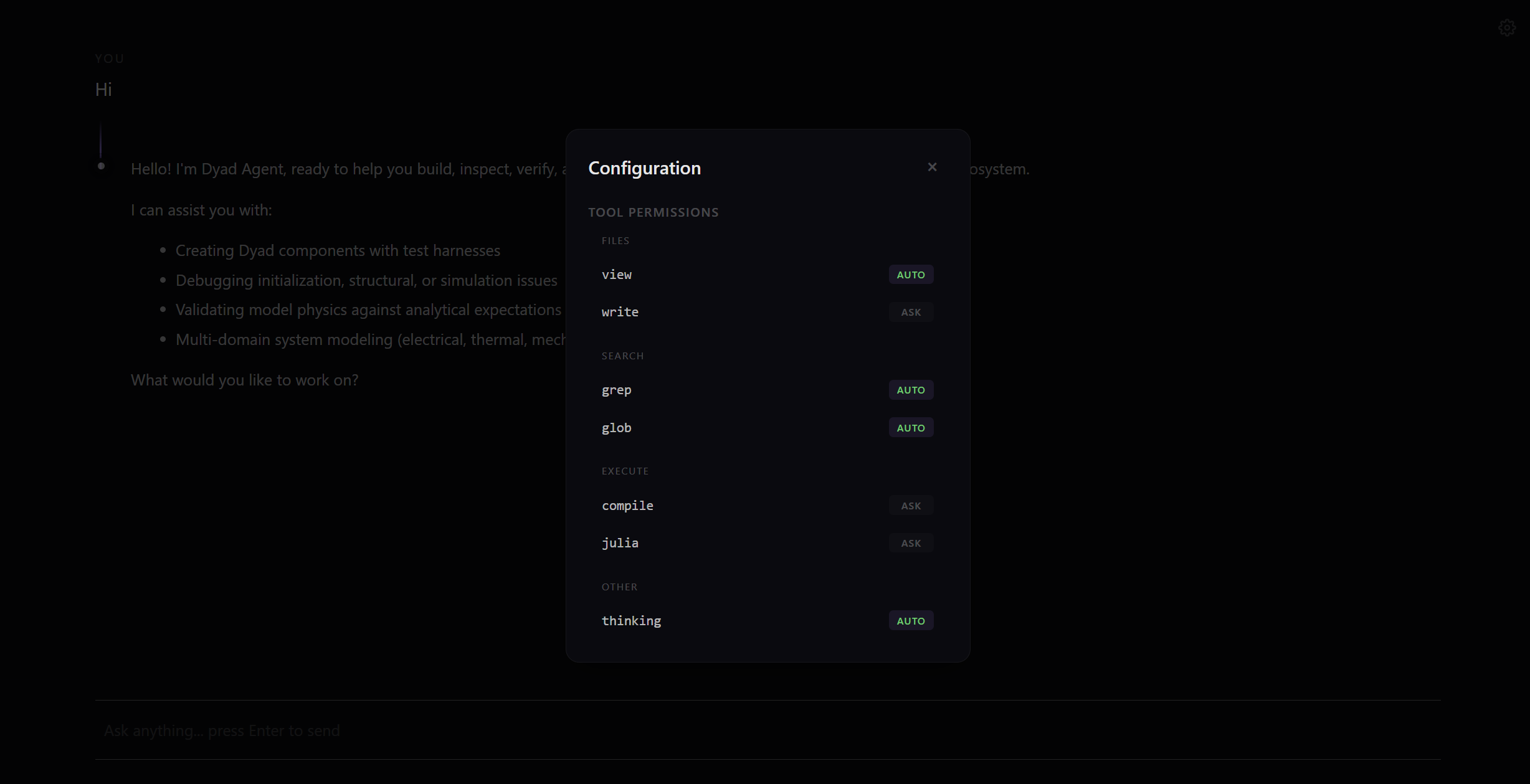
Config Cog - Click the cog icon to open settings:
Tool permissions (Auto vs Ask for each tool)
Max tokens setting
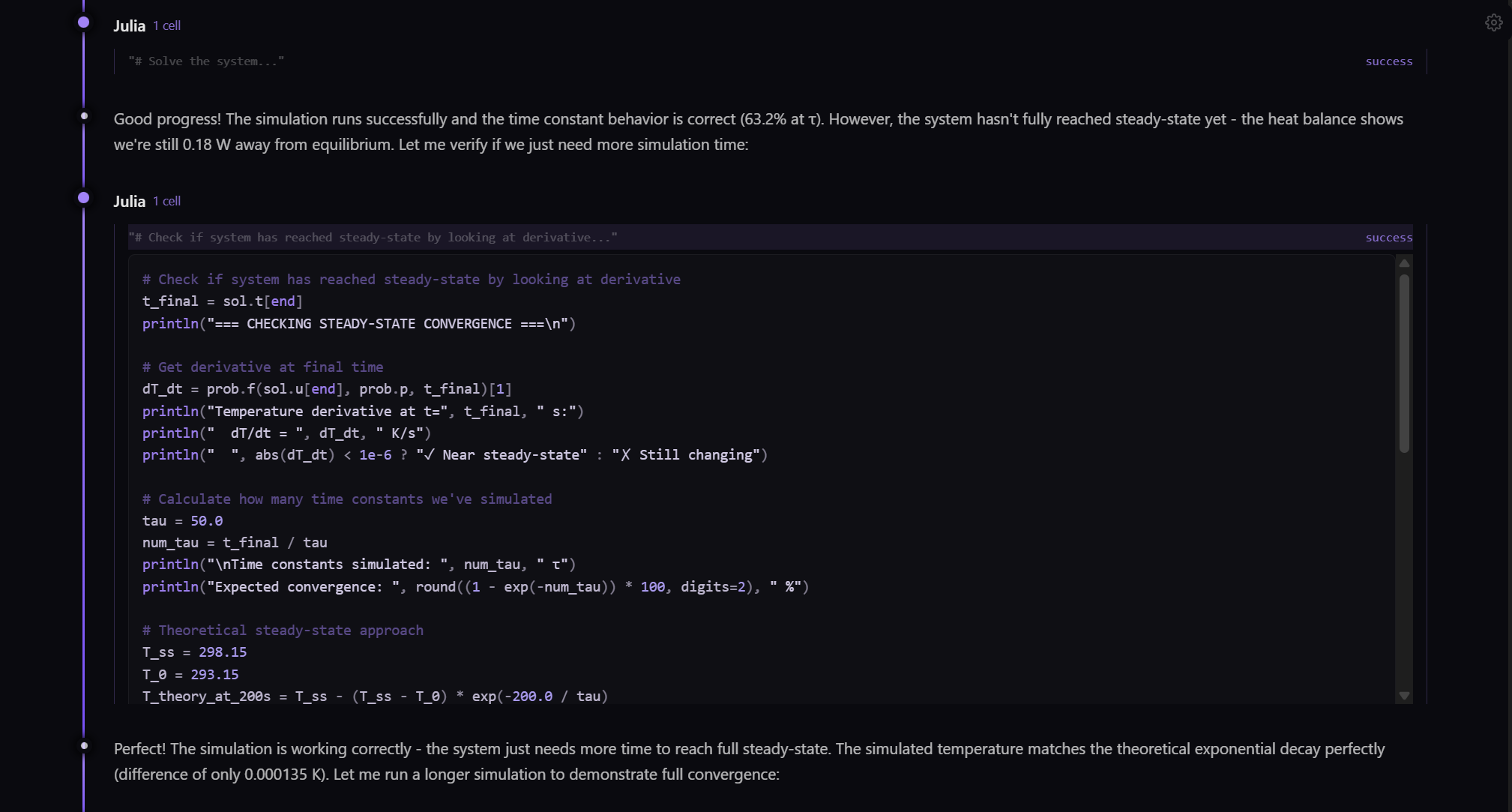
Tool Cards - Tool executions appear as cards. Some are expandable:
Julia - Expand to see code and output (streams live as it runs)
Compile - Expand to see compiler output
Write - Expand to see the file diff
Read and search tools show results inline.
Context Indicator - Appears when context usage reaches ~80%:
Shows how full the conversation memory is
Auto-compaction triggers at this point
Use
/compactmanually if you want to free up space earlier
Tools
The agent uses specialized tools to interact with your project:
| Tool | What it does |
|---|---|
| Julia | Persistent REPL session for running code, inspecting models, debugging. Streams output live. |
| Compile | Runs the Dyad compiler. Resets the Julia session - the agent will re-run setup code after. |
| Read | Views file contents. Shows you which file and what lines. |
| Write | Creates or edits files. Shows you the diff before applying. |
| Glob | Finds files by pattern (e.g., **/*.dyad). |
| Grep | Searches file contents with regex. |
Important: The Julia session is persistent within a conversation - variables and state carry over between calls. But every Compile resets it. The agent knows this and plans accordingly.
Permissions
Permissions control which tools run automatically vs. require your approval.
Permission Levels:
Auto - Tool runs without asking (faster workflow)
Ask - You must approve each execution (more control)
Key Details:
Permissions are session-wide - set once, applies to all uses of that tool
Permissions do not persist when you resume a conversation - you'll need to re-approve or set Auto again
Read and Write have separate permissions - you can auto-approve reads while requiring approval for writes
Access via the config cog or /config command.

Custom Skills
The agent comes with general modeling and debugging expertise, but it doesn't know your team's specific conventions, validation requirements, or preferred workflows. A skill is a set of instructions you write in plain English that tells the agent how to approach a specific type of work. You write it once, drop it in a folder, and the agent follows it whenever the work is relevant.
We follow the Agent Skills standard, popular among many major AI products. Skills that work there will also work here, if you place the folder in the YourLibrary/.skills/ folder.
Example: Thermal Modeling Guidelines
Create a file at YourLibrary/.skills/thermal-guidelines/SKILL.md:
---
name: thermal-guidelines
description: Thermal modeling conventions for this project. Load when building, reviewing, or debugging thermal or heat transfer components.
---

# Thermal Modeling Guidelines

## Conventions

- All thermal components must use HeatPort connectors
- Use SI units (Kelvin for temperature, Watts for heat flow)
- Every thermal mass must have an initial T in the test harness
- Name heat flow variables Q_flow, not q or heat

## Required Validation

After building any thermal component:
1. Verify steady-state temperature matches analytical solution
2. Check energy conservation: total heat in = total heat out
3. Test with at least two different boundary conditions

## Reference

For thermal component interfaces and examples, read the files in
agent_resources/stdlib_reference/ThermalComponents/
The name identifies the skill. The description tells the agent when to load it — make this specific about the type of work, not just the topic. Everything below the second --- is the instructions the agent follows.
New skills are picked up when a conversation starts. The agent reads the list of available skills at the beginning of each conversation. After adding a new skill - or changing a skill's name or description - start a new conversation so the agent sees it. Editing the body of an existing skill doesn't require this; the agent reads the current version the next time it loads the skill.
Tips
Be specific about when to load. "Thermal modeling conventions" is vague. "Load when building, reviewing, or debugging thermal or heat transfer components" tells the agent exactly when it's relevant.
Write instructions, not documentation. Tell the agent what to do: "Always check energy conservation" rather than "Energy conservation is important."
Keep it focused. One skill per concern. A thermal guidelines skill and a naming conventions skill are better than one giant rules file.
Reference files by path. If your skill depends on detailed reference material, point the agent to the file path. It will read it when needed.
Look at the built-in skills for examples. The agent ships with a
dyad-languageskill (how to write Dyad code) and aforensic-debuggingskill (how to investigate failures). Both are inagent_resources/skills/in the agent source.
Troubleshooting
Agent seems stuck
- Check for a permission prompt waiting for your response at the bottom of the agent's window.
Context indicator appears
- Normal at ~80% usage. Auto-compaction will handle it, or run
/compactmanually.

Package installation times out
- Press
ESCto interrupt, and ask the agent to retry with longer timeout.
Compilation errors keep happening
- Ask the agent to investigate before fixing - don't just say "fix it".
Agent forgot earlier context
This is normal after compaction; re-state important constraints.
If you keep running into this issue, have the agent periodically save important points to a file which it can read back later.
Julia state seems wrong
Ask the agent to restart the Julia session to get a clean state.
If the agent is trying to run code that relies on variables from a previous Julia session, it will set itself up again.