Home Page Customization
The JuliaHub home page is built from a grid of widgets, and you can change which widgets appear, what each one shows, and how they are arranged.
The grid is edited under Admin → Settings → Platform → Custom landing page.
There is one home page layout for the whole installation. Saving a layout replaces the home page for every user on the instance.
Opening the Editor
- Open the Admin section in the left sidebar.
- Go to Settings.
- Under the Platform group, select Custom landing page.
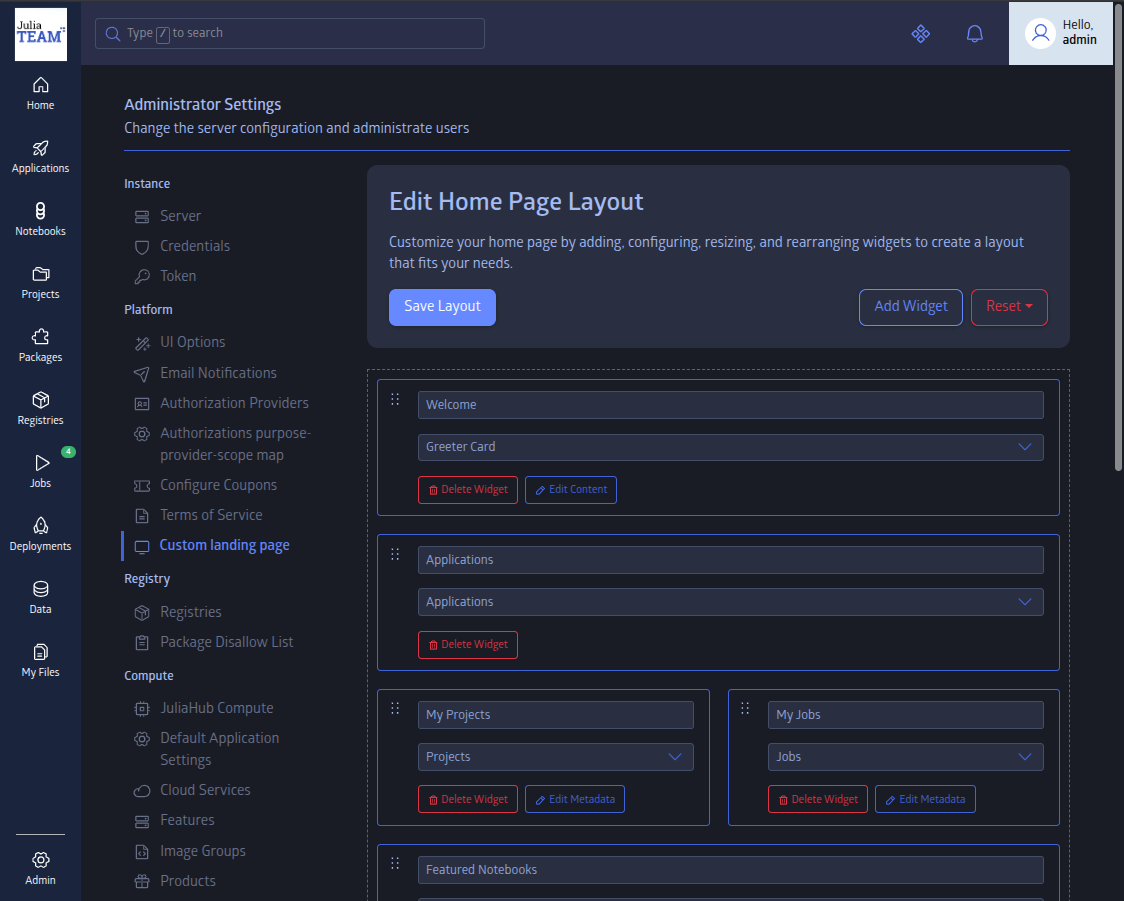
The Home Page Layout Editor
The page holds a single card, Edit Home Page Layout, which is the widget grid.
The grid is two columns wide. Every widget is one row tall — you can change a widget's width and its position, but not its height. A widget is either half width (one column) or full width (two columns).
Widget Types
Choose a type from the widget's dropdown:
| Type | Shows |
|---|---|
| Greeter Card | The welcome banner — your markdown alongside your logo and the sign-in or launch buttons. See The Greeter Card below. |
| Applications | The application cards users launch from. |
| Packages | Packages, newest first. |
| Recently Updated Packages | Packages by most recent update. |
| Projects | Projects. |
| Jobs | Jobs. |
| Recent Batch Jobs | Recently run batch jobs. |
| Featured Notebooks | Featured Pluto notebooks. |
| Markdown Card | Free-form markdown you write yourself. |
Some types take a further setting, reached through a button on the widget:
| Type | Button | Setting |
|---|---|---|
| Packages, Recently Updated Packages | Edit Metadata | All registries, or one specific registry. |
| Projects | Edit Metadata | All projects or My projects. |
| Jobs | Edit Metadata | My jobs. |
| Greeter Card, Markdown Card | Edit Content | A markdown editor. |
Applications, Recent Batch Jobs, and Featured Notebooks have no extra settings, so they show no Edit button.
The Greeter Card
The Greeter Card is the welcome banner at the top of the home page. It was previously a separate panel with its own editor; it is now an ordinary widget, so you can move it, resize it, or delete it like any other.
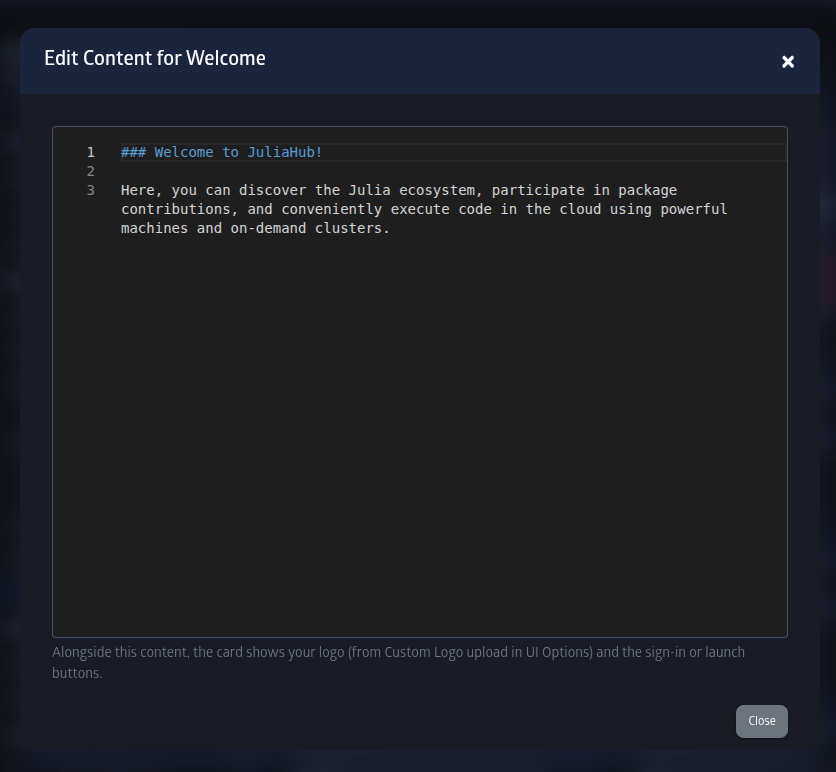
Click Edit Content to write its markdown. Alongside your text the card renders two things you do not control from here:
- Your logo — uploaded separately under Admin → Settings → Platform → UI Options as Custom Logo. The logo is hidden on narrow screens.
- Session buttons — Login or Sign Up for logged-out visitors; for signed-in users, a Julia IDE launch button, New Project, and Get Started. The launch and New Project buttons appear only where the compute UI is enabled.
A greeter card must have content — unlike the old panel, there is no "disable" button. To remove the banner entirely, delete the widget. To get JuliaHub's stock welcome text back, add a new Greeter Card: it starts pre-filled with the default wording.
If you had set custom greeter text before upgrading, it is carried over into a Greeter Card at the top of your existing layout, so the home page looks the same after the upgrade. If you had never set any, the card is seeded with the default welcome text.
Building a Layout
- Click Add Widget. A new, empty widget card appears on the grid.
- Type a title. This is the heading users see above the widget.
- Pick a type from the dropdown.
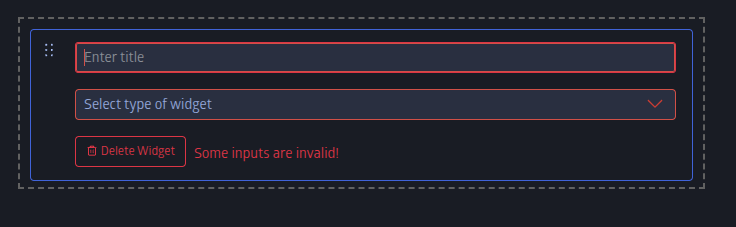
- If the type takes one, click Edit Metadata (or Edit Content for a Greeter or Markdown Card), make your selection or write your markdown, and click Close.
- Drag the handle at the left of a widget to move it; drag a widget's left or right edge to make it half or full width.
- Click Save Layout.
Nothing is applied until you click Save Layout.
Validation
Save Layout stays disabled until every widget is valid. A widget is valid when:
- it has a title, of at most 256 characters;
- it has a type selected; and
- if it is a Greeter or Markdown Card, its content is not empty.
An invalid widget shows "Some inputs are invalid!" on the card, and an empty Greeter or Markdown Card shows "Content cannot be empty!" in the content editor. You also cannot save a layout with no widgets at all.
Resetting
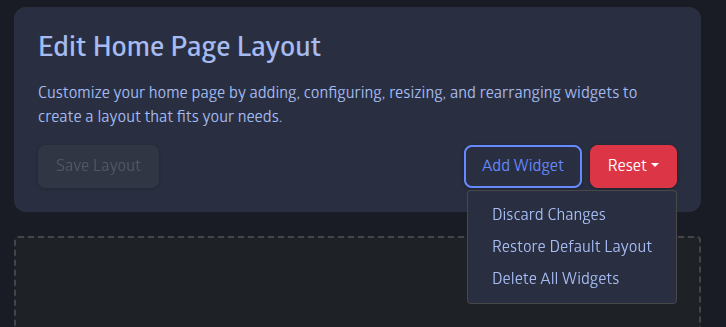
The Reset dropdown offers three actions:
- Discard Changes — reload the saved layout, abandoning unsaved edits.
- Restore Default Layout — load JuliaHub's default set of widgets. This is still only a proposal until you click Save Layout.
- Delete All Widgets — empty the grid. Since an empty layout cannot be saved, use this as a starting point for building a layout from scratch.
The Default Layout
If no layout has ever been saved, the home page uses JuliaHub's default:
| Row | Widgets |
|---|---|
| 1 | Welcome — a Greeter Card (full width) |
| 2 | Applications (full width) |
| 3 | My Projects, My Jobs |
| 4 | Featured Notebooks (full width) |
| 5 | New Packages, Recently Updated Packages |
| 6 | Recent Batch Jobs (full width) |
Restore Default Layout brings this same set back into the editor.
What Users Actually See
A saved layout is the same for everyone, but individual widgets can still be hidden depending on who is looking and how the instance is configured:
- Applications, Projects, Jobs, and Recent Batch Jobs appear only for logged-in users, and only on instances where the compute UI is enabled.
- Featured Notebooks requires the compute UI, but is shown to logged-out visitors as well.
- Greeter Card, Packages, Recently Updated Packages, and Markdown Card are always shown. The Greeter Card is always present, but which buttons it offers depends on whether the viewer is signed in and whether compute is enabled.
This has a practical consequence: on an instance with the compute UI disabled, a layout built only from compute widgets renders an empty home page. If your instance does not offer compute, build the layout from greeter, package and markdown widgets.
Greeter and Markdown Card content is converted to HTML on the server when you save, and sanitized before it is stored. Unsafe markup is stripped, so neither can be used to inject scripts or arbitrary HTML into the home page.
Troubleshooting
I can't find the Custom landing page tab. This tab is currently available to platform administrators only. If you need access, contact JuliaHub support.
Where did the Custom Greeter Card panel go? It is now a Greeter Card widget on the grid — see The Greeter Card. Your existing greeting was carried over, so the home page is unchanged; edit it by clicking Edit Content on that widget.
Save Layout is greyed out. One or more widgets are invalid, or the grid is empty. Look for a widget showing "Some inputs are invalid!" — the usual causes are a missing title, a title over 256 characters, no type selected, or an empty Greeter or Markdown Card.
I saved a layout but the home page looks unchanged. The home page is fetched fresh each time it is opened, so no cache needs clearing — reload the page. If widgets are still missing, check the visibility rules above; the widgets you added may be hidden for logged-out users or on a compute-disabled instance.
I want the old home page back. Open the editor, choose Reset → Restore Default Layout, and click Save Layout.