Deployments
Introduction
In this tutorial you will learn how to deploy your projects as long running services.
Creating a deployable Project
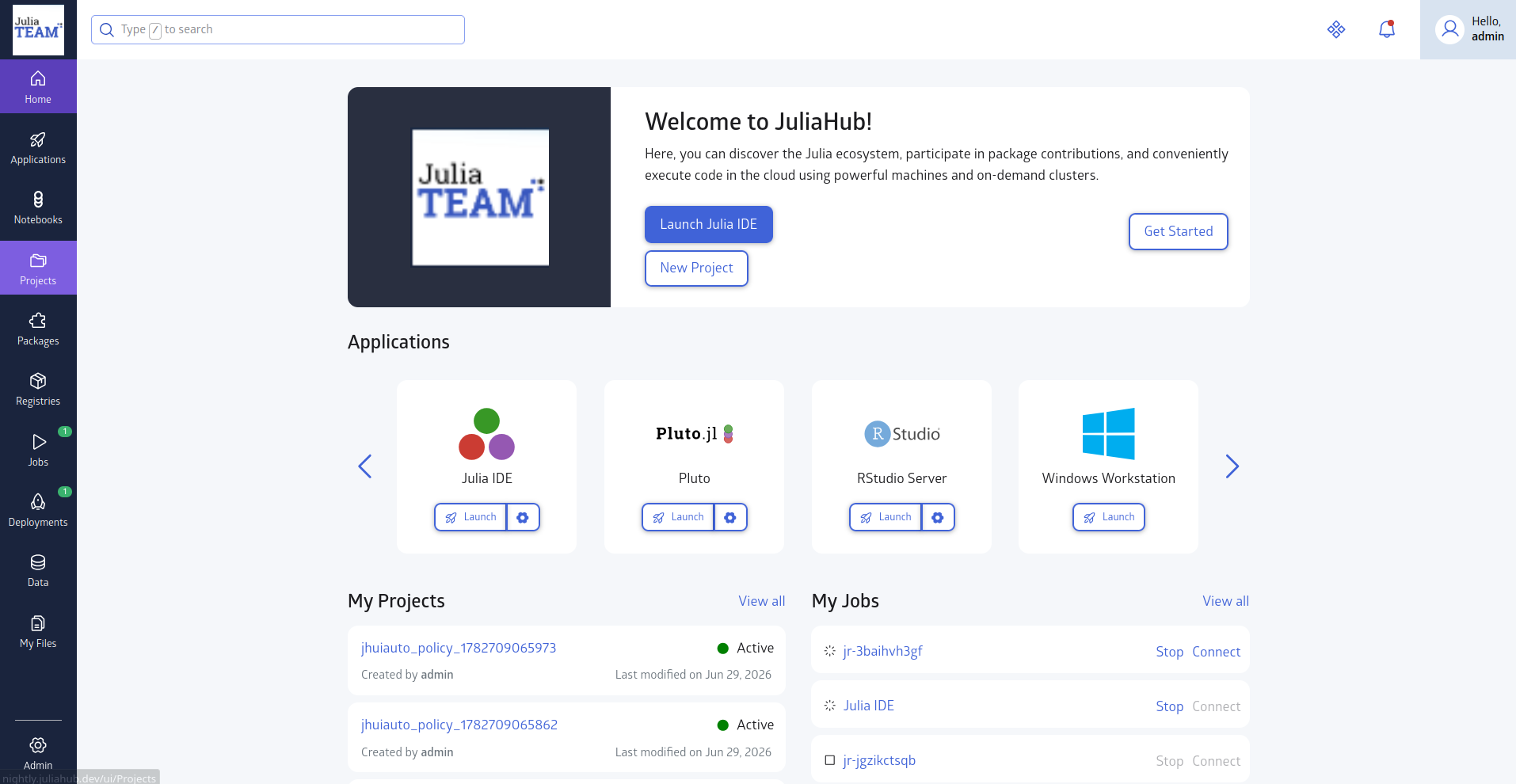
To create a deployable project, navigate to the 'Projects' tab from the left menu bar.
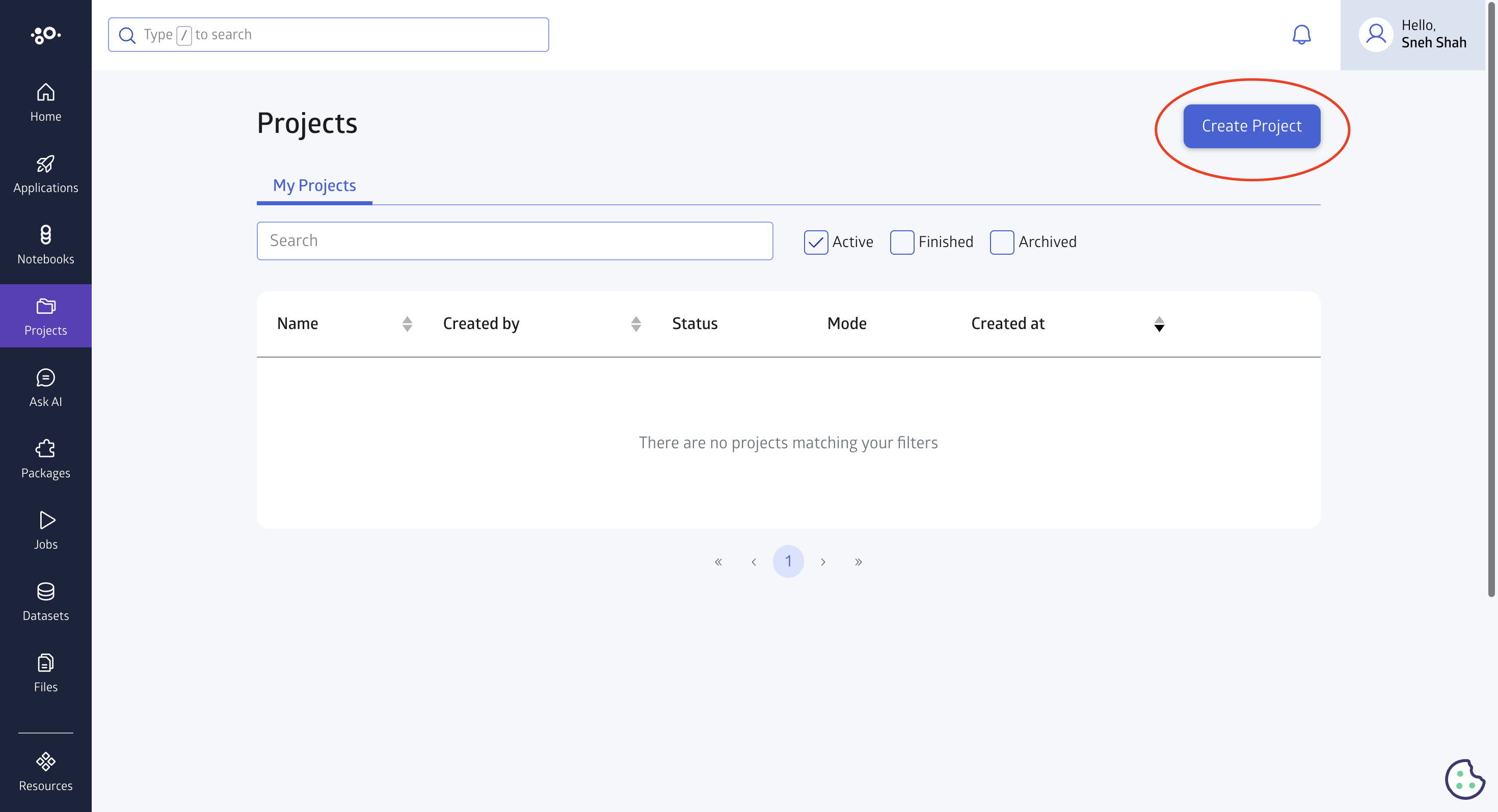
Once you are in the projects section click the 'Create project' button.
If this is your first time working with deployments on JuliaHub we recommend that you select the "Web application" template. The web application template is based on HTTP.jl, a pure Julia HTTP server library. It provides a simple starting point for building and hosting web servers and interactive applications directly on JuliaHub.
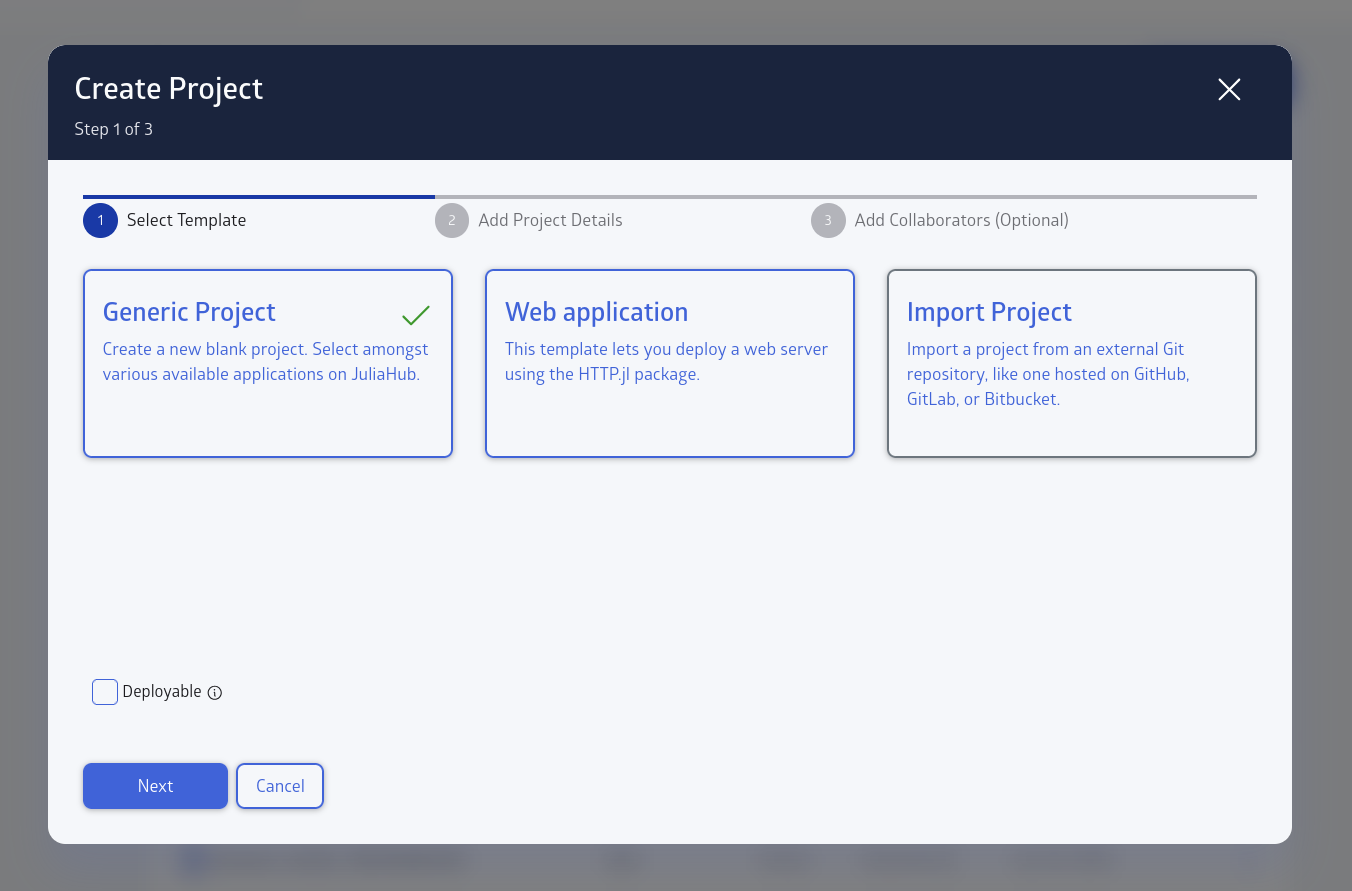
If you selected one of "Generic Project" or "Import Project" options, check the "Deployable" box on the bottom left. You can also convert the project to deployable later.
Tip: If you have an existing git repo that you want to make a deployment, select "Import Project" and check the "Deployable" box.
In the next step, you will be required to provide the name of your project and give it a description. You can also provide tags and choose the default editor application. You will also need to select the workflow type: Group Editing or Exclusive Editing.
In the third step of the setup, you can add collaborators such as groups or a single user and grant them different access levels.
Note that a minimum of "Editor" access is required for a user on a project to be allowed to deploy that project.
Configure the deployment settings (also called deployment specifications). At this stage, the settings are only saved. The instance will be started only when you deploy your project via the "Deploy" button later.
Deployment settings
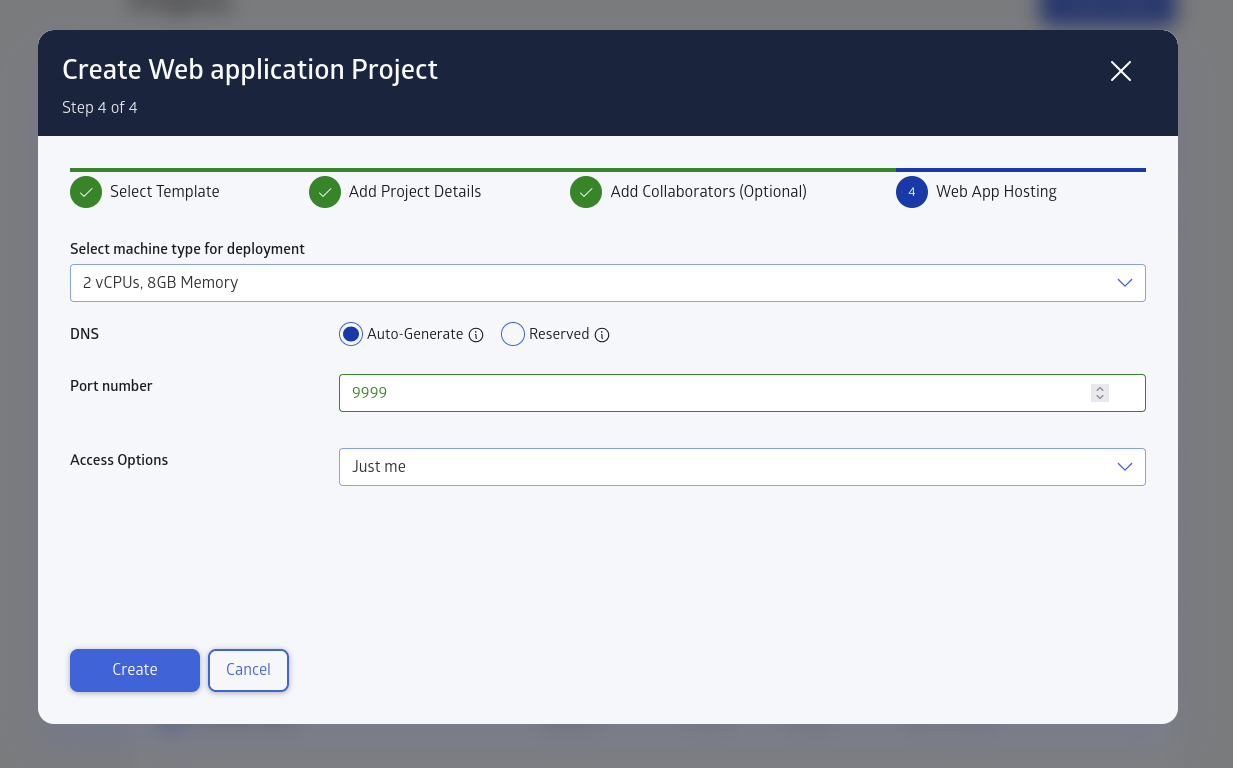
- Select machine type for deployment: Select the size of machine indicated by number of CPUs and size of RAM.
- DNS: Select whether you want the domain name for the project deployment to be auto-generated or reserved. If you selected auto-generate, a different domain name will be generated for each deployment. If you selected "Reserved", then you get to choose from your list of reserved domain names.
- Port number: The port number that will be proxied and exposed.
- Access Options: Select the access option for your project deployment. If you selected "Just me", only you are allowed to access the deployment. If you selected "Logged in users", any user logged in to JuliaHub can access your project through the selected domain name. Choose password protected if you want to enforce a password to access your deployment. Finally "Totally public" disables authentication for the project deployment.
- Autoscaling: You can opt in to have your deployment automatically suspended and resumed. You can also select the number of hours you want the deployment to remain running when inactive. "Inactive" means the deployment has not received any web requests to its "DNS" endpoint. You can also manually suspend or resume your deployment.
- Advanced options: Here you can specify certain advanced settings for the deployment. These include system image builds and environment variables.
You can edit these settings later by clicking "Manage" -> "Manage Deployment specifications". For more information on this see below.
A deployed app exposes every HTTP route it serves. Anyone in the access group you choose can reach every HTTP route your application serves at its URL — including routes registered by the packages it depends on, not just the routes you wrote. Some web and development packages register administrative routes (for evaluating code, browsing or editing files, or opening a REPL) when run in their default development configuration. Before deploying — especially with the fully public option — make sure your application does not load development or debugging tooling, and if the framework you use has a production setting, enable it. Never hard-code credentials or API tokens in a publicly accessible app; use JuliaHub's encrypted secrets instead. Prefer a restricted access option unless the app is genuinely meant for the open internet.
Once you have completed this stage, you will see the project added to your projects.
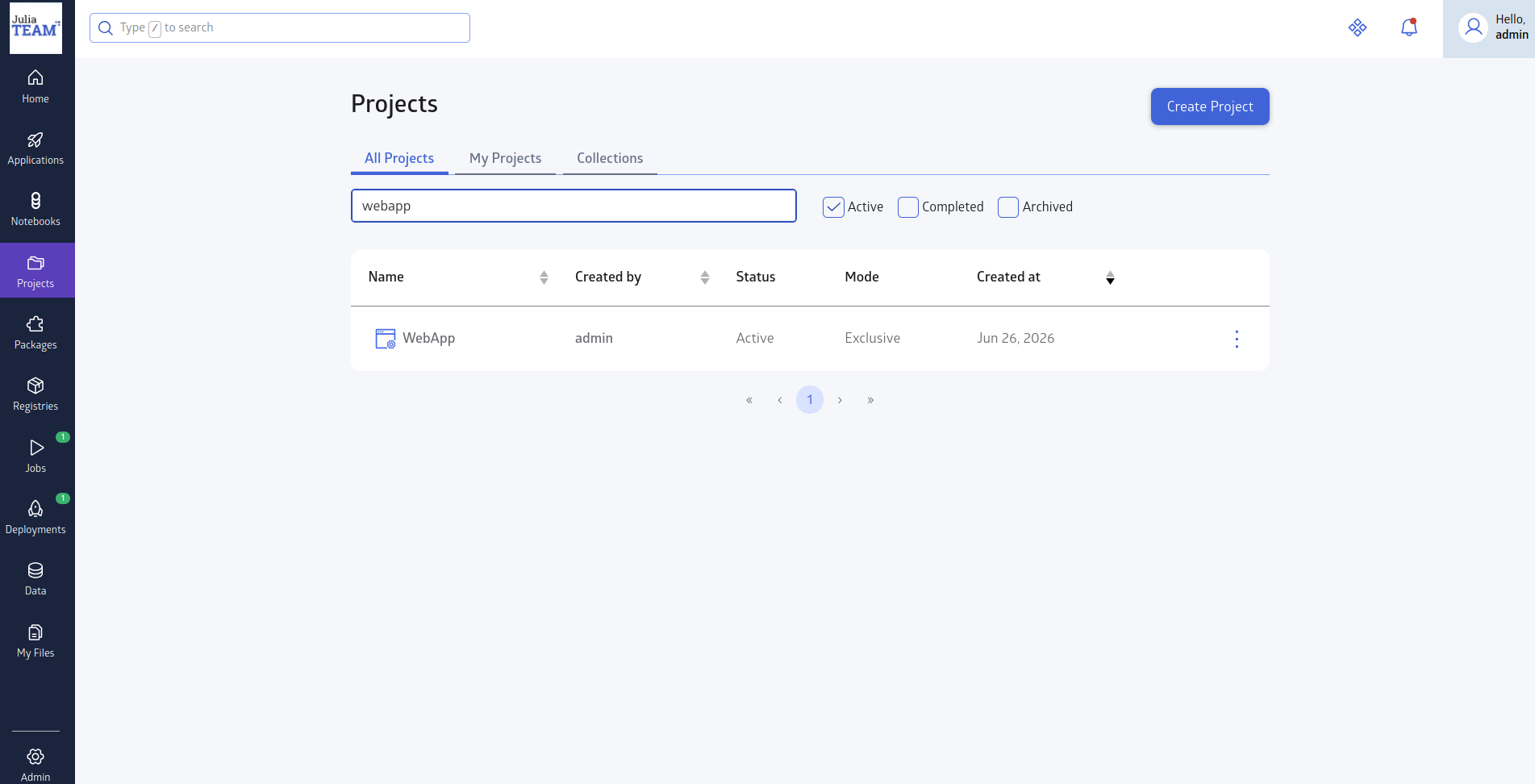
Click on the project to see the details of the project.
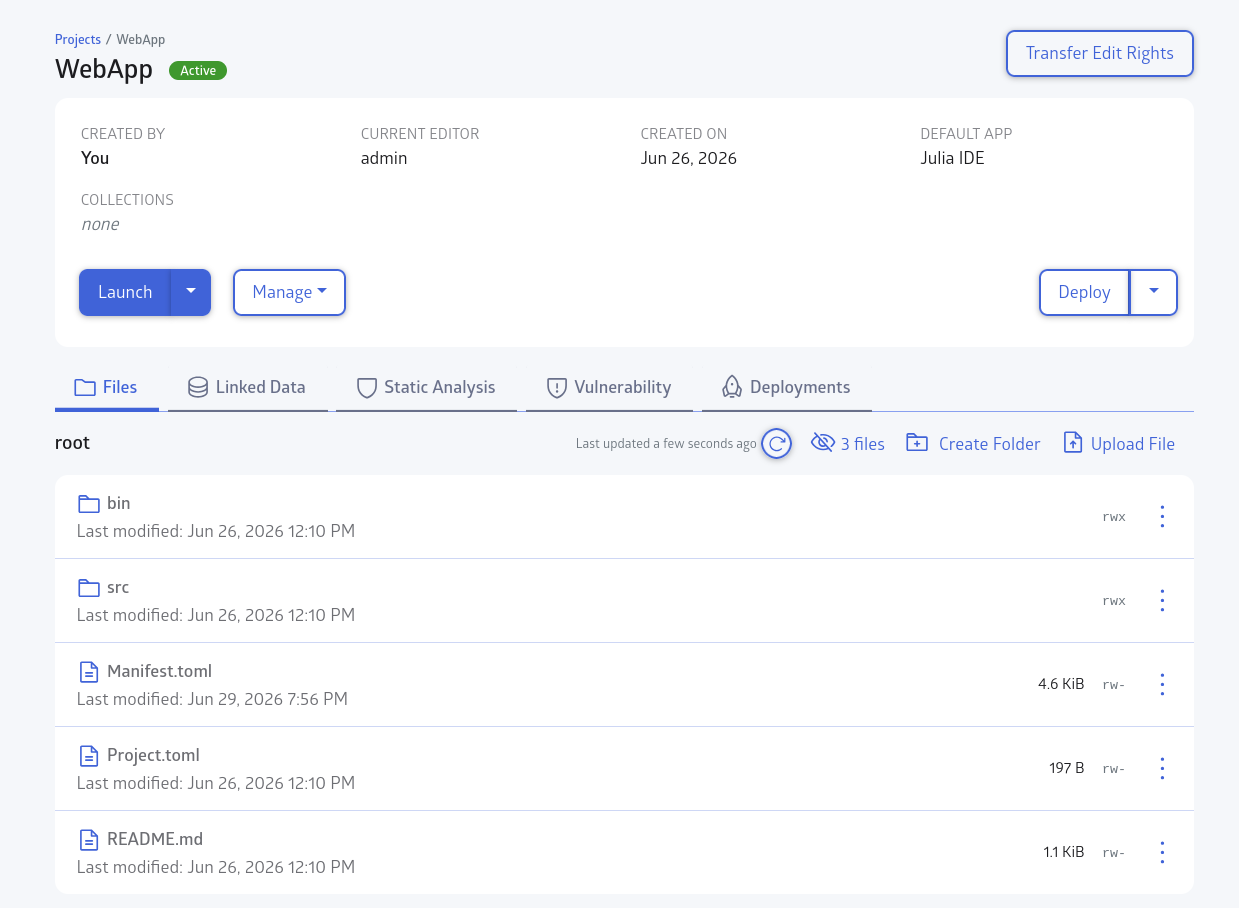
Developing with Julia IDE
You can edit the files on your project by clicking on the "Launch" button to open an editor. Alternatively, you can upload files by clicking the 'Import file' button.
To deploy your project, you will need a Manifest.toml file. If your project does not have Manifest.toml generated, follow the next steps.
Click the 'Launch' button to start an editor session. You will then be redirected to a VS Code tab automatically once the editor is ready.
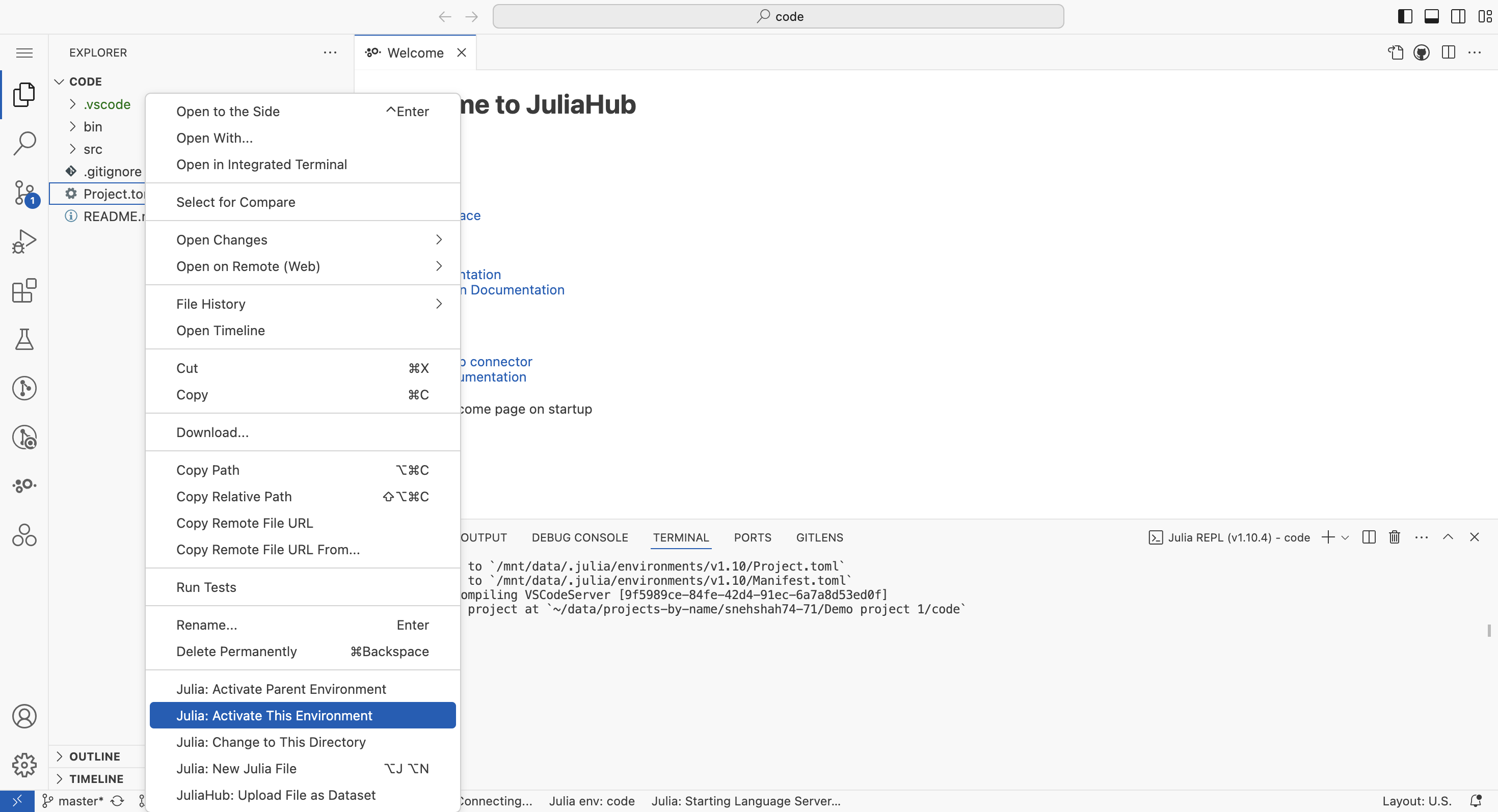
In VS Code, right click the 'Project.toml' file and then click 'Julia: Activate this Environment' in the dropdown menu.
After that in the Julia terminal type: ] to enter package mode and insert 'instantiate' and press the Enter key.
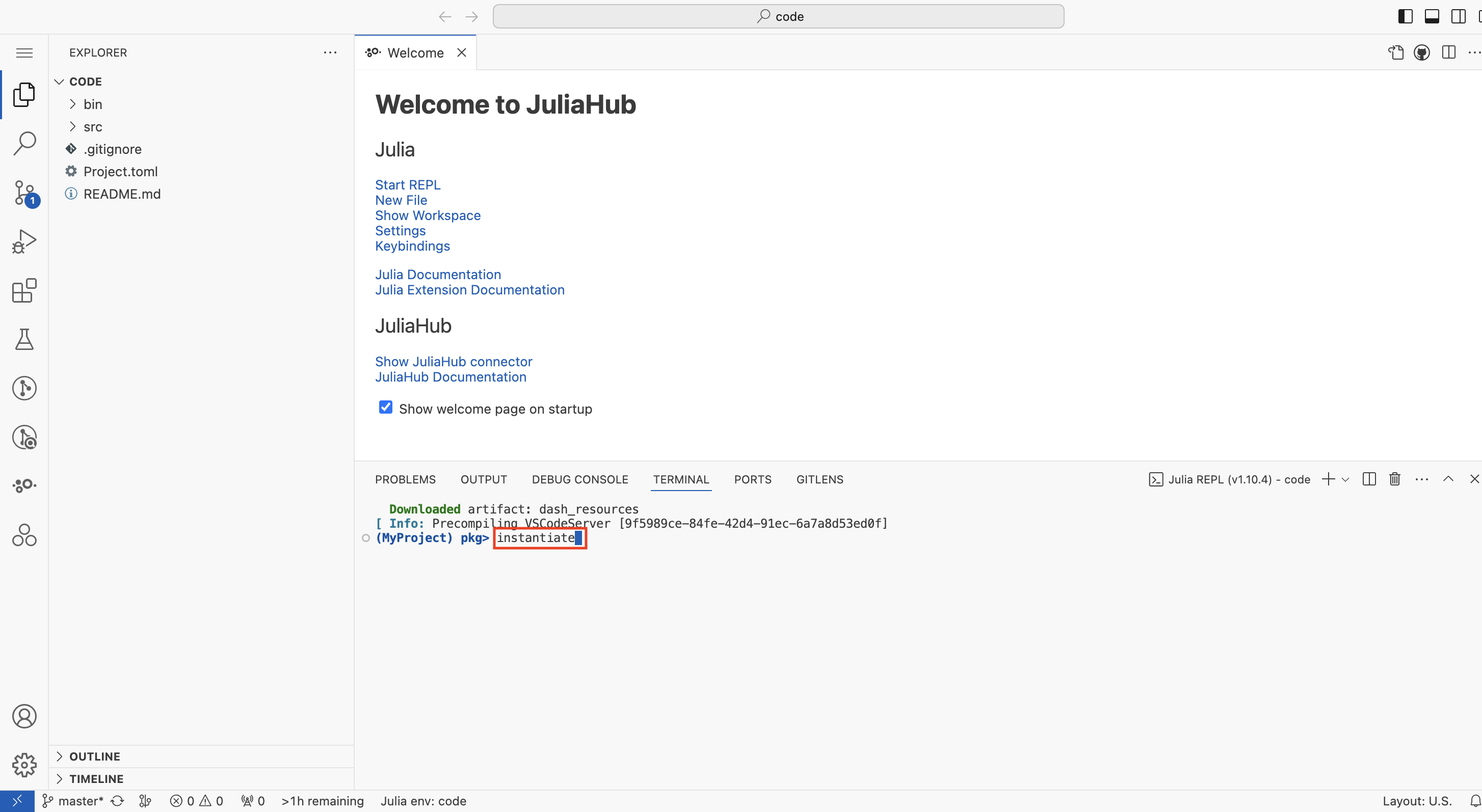
You will see a Manifest.toml file is generated. After that go to source control and commit changes.
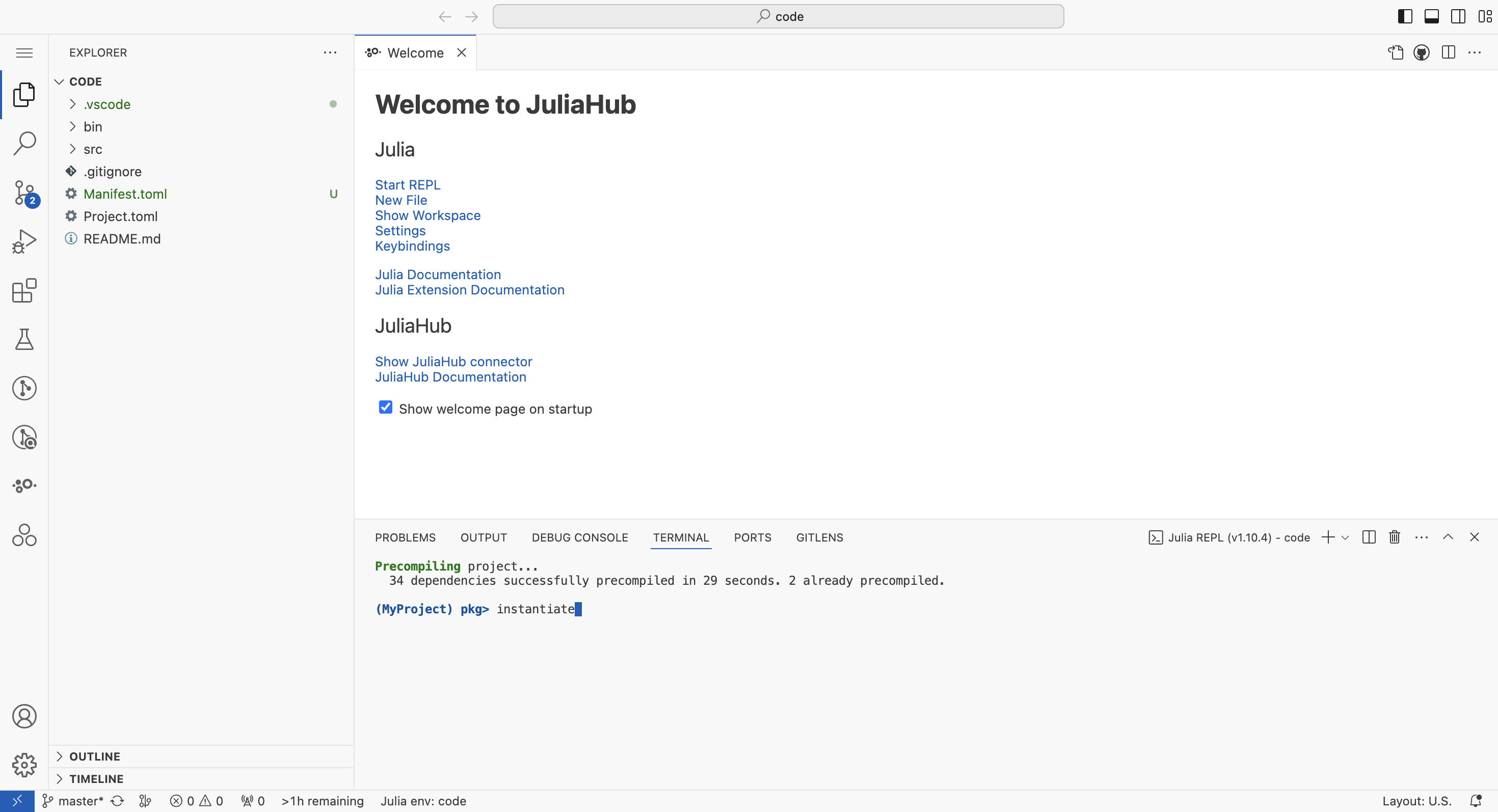
Go back to your JuliaHub project page. If you created a Group editing project click the 'Publish' button to pull your new Manifest.toml file. If you created an Exclusive editing project you don't have to do anything at this stage.
Testing your code
It is convenient to run and test your project code inside the editor before deploying it on the platform.
A deployment is always started by executing the bin/main.jl file. However, internally JuliaHub will invoke this file via include. Therefore the commonly used guard abspath(PROGRAM_FILE) == @__FILE__ will return false. Relative paths and absolute paths constructed via @__DIR__ will work as expected.
Click on the main.jl file in the file menu:
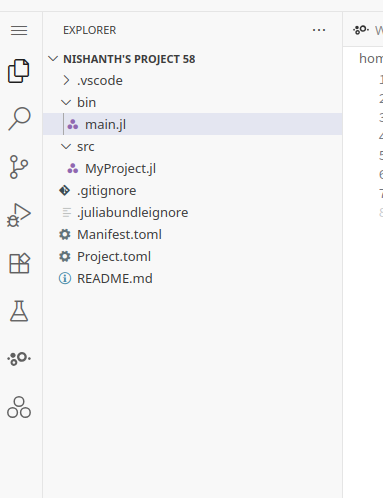
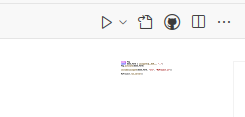
Activate the environment by selecting "Julia: Activate this environment" from the ... menu. Thereafter, run the script by clicking the play button:
Once you run this script in the JuliaHub IDE, you should see the following dialog on the bottom right side of the screen:
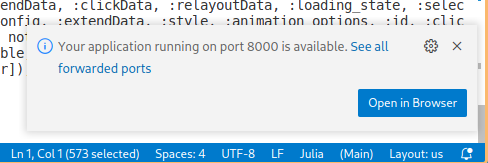
Once you click on "Open in Browser" you should see your web application correctly rendered.
By default, JuliaHub IDE proxies requests. Make sure your server listens on Sockets.localhost (not 0.0.0.0) so it responds correctly through the proxy.
Managing deployment specifications
A deployment specification is required to deploy your project to the cloud. A deployment specification provides JuliaHub with the details necessary to provision resources to your deployment, expose the necessary ports and other details. Click on the "Manage" drop down and then select "Manage deployment specifications". This will open the deployment specifications page. To navigate back to the project click on the bread crumb with the project name on the top left.
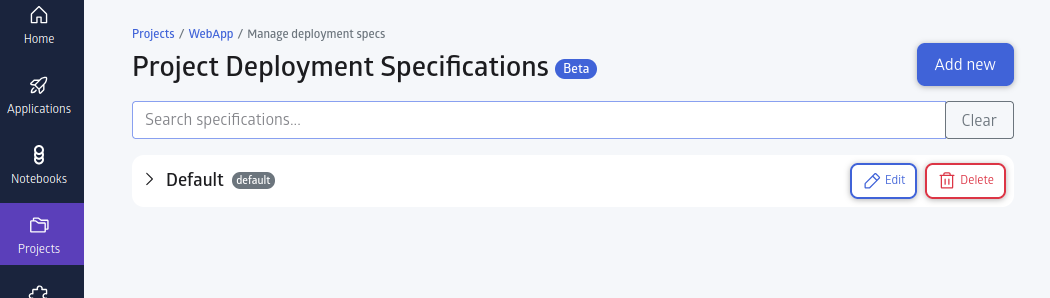
The deployment settings that you added when creating the project will appear here as "Default". This is the current default specification. To add a new specification click on "Add new".
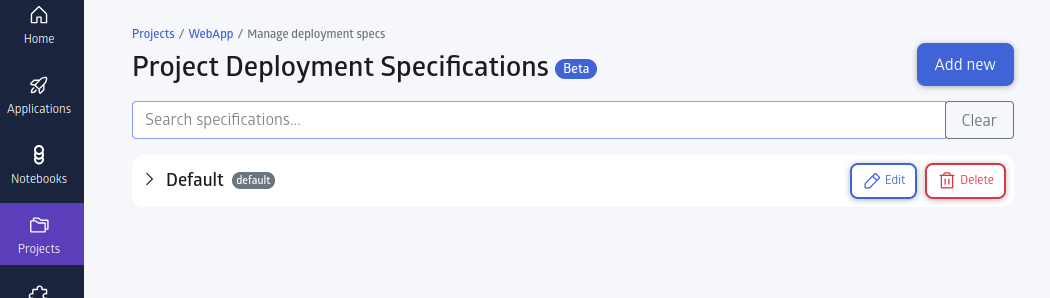
Most of the settings here are the same as those described in deployment settings. The ones that are different are:
- Name: You can provide a name for this specification to help yourself and others identify it in future.
- Description: You can provide a description for this specification. You can use this is to enter details for yourself or others explaining what this specification should be used for.
- Set as default specification: You can mark this specification as the new default. The current default specification will be unmarked. A default specification will be the first specification to be selected and displayed in the deployment dialog.
You can also edit existing deployment specifications by clicking the "Edit" button. A specification can be deleted by clicking the "Delete" button. A default specification cannot be deleted. You must mark some other specification as default before deleting a default specification.
Deploying your project
The 'Deploy' button can be found on the project page as shown above. If you created a Group editing project the Deploy button is made available in the 'Source' tab. Click on the 'Deploy' button to deploy the project as a dedicated, long-running container. This will open the deploy dialog with the default specification selected and its details displayed. If required, you can select a different specification.
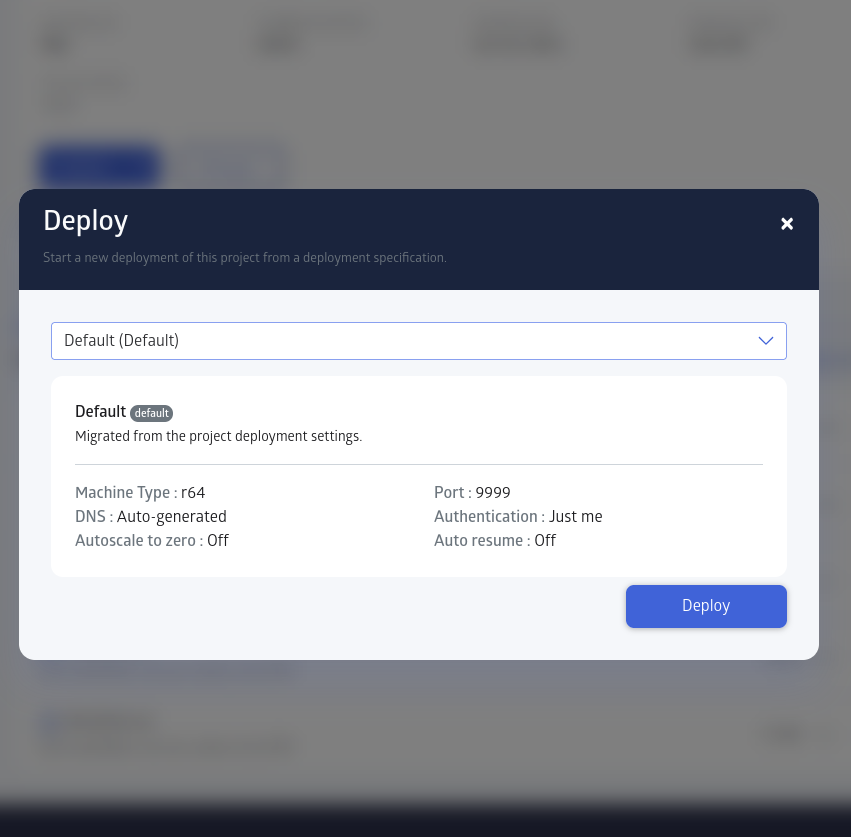
Click the "Deploy" button within this dialog to deploy your project. Your deployed project will be opened in a new browser tab automatically when it is ready. You can deploy multiple deployments per project but only one per specification.
Congratulations! You now have a web application deployed on JuliaHub.
Viewing your deployments
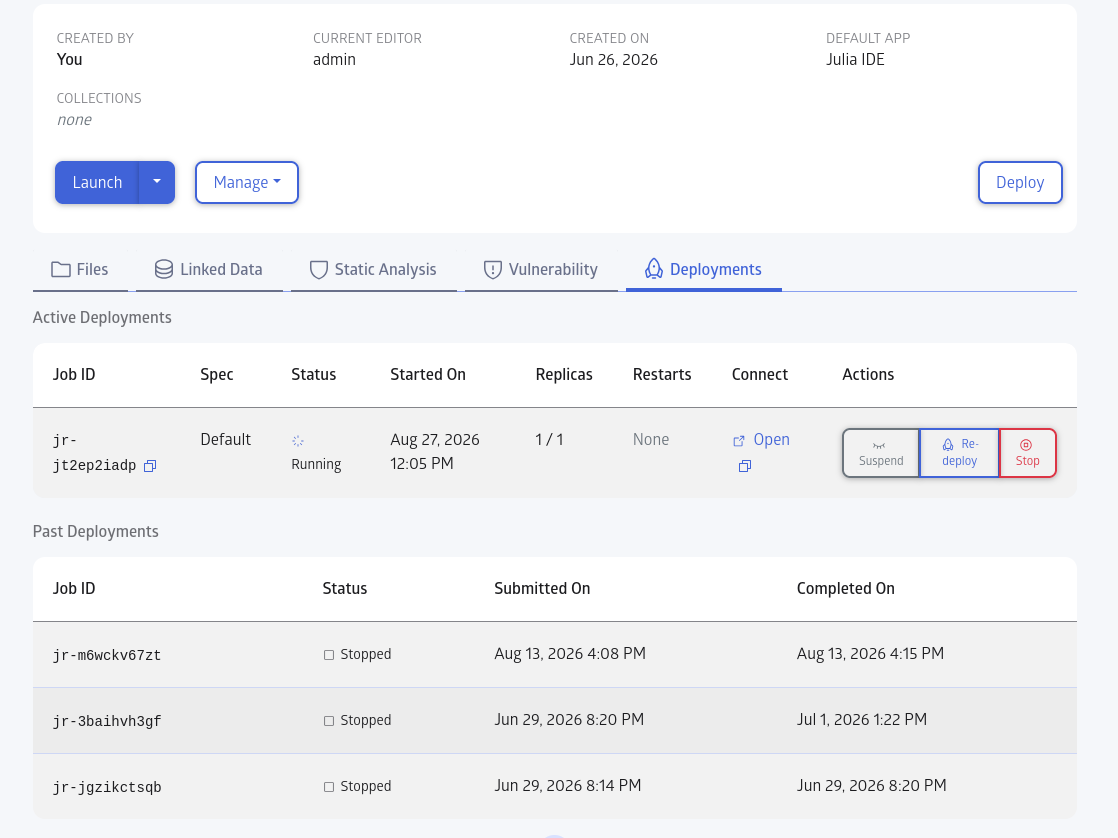
Click on the "Deployments" tab in the project page to list the deployments associated with this project. Here you will see the current active deployments as a table on the top and past deployments in the bottom. To view the job details of a deployment click on the job name on any row. Logs for the deployment can also be viewed on the job details page.
Suspending and resuming your deployment
Deployments can be suspended to save on costs. Suspending a deployment will de-allocate its hardware resources. To suspend a deployment, click on the "Suspend" button on the row of that deployment in the "Active Deployments" table.
The "Suspend" button changes to "Resume" once your deployment is successfully suspended. Clicking the "Resume" button thereafter will resume the deployment.
You can also opt in to auto suspend and resume your deployments. See Deployment settings. This is also part of the deployment specification.
Sharing your deployment with others
To share your deployment with other users first configure access to the deployment. You can do so by editing the deployment specification (or by creating a new specification). For more details see access options in deployment settings above.
To get a link to the deployment, click on the copy icon next to "Open" under the "Connect" column in the "Active Deployments" table.
Storing data for your project
Deployments often need somewhere durable to keep the data they produce or consume: uploaded files, generated reports, caches that should survive a restart. On installations with project data storage, every project gets its own private folder in an S3 bucket, and every job that runs in the context of the project can read and write it.
Project data storage is on by default on any JuliaHub installation that stores datasets in an S3 bucket: project folders are placed in that same bucket. Administrators can point it at a different location or switch it off. If it is off, or the installation has no S3 storage, the environment variable described below is empty or not set. See Configuring project data storage below.
Finding your project's storage location
The location is provided to your code through the JULIAHUB_DEPLOYMENTS_DATA_ROOT environment variable. It has the form
s3://<bucket>/<prefix>/<project uuid>where the last component is your project's unique identifier (the same value as JULIAHUB_PROJECT_UUID). By default the bucket is the installation's datasets bucket and the prefix is deployments_data; your administrator may have chosen a different location. Everything your project stores lives under this root.
root = get(ENV, "JULIAHUB_DEPLOYMENTS_DATA_ROOT", "")
if isempty(root)
    @warn "Project data storage is not enabled on this JuliaHub instance"
else
    bucket, prefix = split(chopprefix(root, "s3://"), "/"; limit = 2)
    # e.g. bucket = "acme-juliahub-data", prefix = "deployments_data/1b4e28ba-..."
    # Store objects as "$(prefix)/<your object name>" in `bucket`.
end
Use the location with the S3 client of your choice, for example AWS.jl. The job's AWS credentials are provisioned and refreshed automatically by JuliaHub for the lifetime of the job, so you do not need to configure any keys yourself. Do not copy these credentials out of the job: they are scoped to the job and expire with it.
Browsing project storage from the Julia IDE
If you would rather look at the folder than script against it, the Aws S3 extension for VS Code (identifier NecatiARSLAN.aws-s3-vscode-extension, Apache-2.0) works in the JuliaHub Julia IDE. It lets you browse the folder, preview files, and upload, download, rename and delete objects. It is a third-party extension that JuliaHub does not bundle or support; you install it into your own editor sessions, and its optional paid tier only covers AI features that are switched off in the IDE.
Start a Julia IDE session from the project page, so that the session runs in the project's context and has access to the folder.
In the IDE, open the Extensions view, search for
Aws S3and install the extension published by NecatiARSLAN. There are no keys to configure: the extension picks up the session's AWS credentials automatically.Find your folder's bucket and key. In the IDE's integrated terminal, run
echo "$JULIAHUB_DEPLOYMENTS_DATA_ROOT"which prints, for example,
s3://acme-juliahub-data/deployments_data/1b4e28ba-2fa1-41d2-883f-0016d3cca427. The bucket is the first component (acme-juliahub-data). The key is everything after it, with a trailing slash added (deployments_data/1b4e28ba-2fa1-41d2-883f-0016d3cca427/).Bind a key that opens the explorer at that folder. Run Preferences: Open Keyboard Shortcuts (JSON) from the Command Palette and add an entry like the following, with your own bucket and key:
[
    {
        "key": "ctrl+alt+d",
        "command": "runCommands",
        "args": {
            "commands": [
                {
                    "command": "aws-s3.OpenS3ExplorerView",
                    "args": ["acme-juliahub-data", "deployments_data/1b4e28ba-2fa1-41d2-883f-0016d3cca427/"]
                }
            ]
        }
    }
]
Press the key. An S3 Explorer tab opens at your project folder.
The shortcut is saved with your IDE settings and persists across sessions. If you work on several projects, add one entry per project, each with its own key combination.
The extension's own Add Bucket button verifies the bucket and lists the buckets in the account, and your job's credentials are deliberately not allowed to do either (see What your project can and cannot do below). The shortcut opens the explorer directly at a folder your credentials can list, so no such check is needed. For the same reason the explorer's Home and Go Back buttons, and the parts of the breadcrumb above your folder, report Access Denied; everything inside the folder works.
If the explorer reports expired credentials after a long session, close the S3 Explorer tab and press the shortcut again: JuliaHub has already refreshed the credentials, and reopening makes the extension pick them up.
Which jobs have access
Access is granted to any job that runs in the context of a project, not only to deployments. This includes:
- Deployments started from the project's "Deploy" button.
- Project batch jobs.
- Editor sessions and applications launched from the project page.
All of these share the same folder, so a batch job can prepare data that a deployment later serves, and an editor session can inspect what a deployment has written. Every collaborator who is allowed to run jobs on the project gets the same access through their jobs.
Jobs that are not associated with a project do not receive access, and the variable is not set for them.
What your project can and cannot do
Within its own folder a project's jobs can:
- Read, write and delete objects.
- List the contents of the folder.
- Use multipart uploads for large objects.
A project's jobs cannot:
- See or list anything outside the project folder, including the bucket root or other projects' folders.
- Create, delete or configure buckets.
The folder is not created ahead of time. It appears in the bucket the first time one of your jobs writes to it, so a project that never uses the feature leaves nothing behind.
Data lifecycle
The data in a project's folder belongs to the project, not to any single deployment:
- It persists when a deployment is suspended, resumed, terminated or redeployed, and when deployment specifications change.
- It is shared across all deployments and jobs of the project.
- It is not deleted when the project is archived, restored, or converted between a regular and a deployable project. Archiving a project prevents new deployments, but the data remains in place.
- JuliaHub never deletes data from this folder. Deleting data is up to you (from within a job) or to your administrator through the bucket's own configuration.
Your administrator may apply storage lifecycle rules to the bucket, for example to move old objects to cheaper storage or to expire them. Ask your administrator what retention applies on your installation.
Configuring project data storage
Project data storage is controlled for the whole installation by the deployments_data_bucket setting in the Various compute config section of the admin panel. The setting accepts three kinds of value:
| Value | Effect |
|---|---|
| (empty, the default) | Project folders are placed in the installation's datasets bucket under the prefix deployments_data, that is at s3://<datasets bucket>/deployments_data/<project uuid>. On installations without an S3 datasets bucket the feature is off. |
s3://<bucket> or s3://<bucket>/<prefix> | Project folders are placed directly under this location instead, named by the project's unique identifier. |
disabled | The feature is off. New jobs do not receive access, and JULIAHUB_DEPLOYMENTS_DATA_ROOT is not set for them. |
The read-only deployments_data_bucket_effective entry next to the setting shows the parent location currently in effect, so you can confirm what the default resolves to on your installation. It is informational and ignored when saving.
To change the setting:
- Open the admin panel and locate the Various compute config section.
- Set
deployments_data_bucketto one of the values above. Leave it empty to use the default location. - Save the configuration. It applies to jobs submitted from then on. Jobs already running are unaffected until they finish.
Switching the feature off (disabled) or changing the location does not move or delete any data. Existing project folders are left untouched at their old location; new jobs simply stop receiving access to them.
Because the feature is on by default, make sure the IAM role that JuliaHub uses to issue job credentials is allowed to access the datasets bucket (see below). If it is not, project jobs receive a JULIAHUB_DEPLOYMENTS_DATA_ROOT they cannot use. Either grant the role access or set the value to disabled.
Requirements and constraints:
- The bucket must already exist. JuliaHub does not create it. The default location reuses the datasets bucket, which already exists on any installation with dataset storage.
- When setting a custom location, the bucket name must be a valid S3 bucket name (lowercase). The optional prefix may contain letters, digits and the characters
! _ . = + @ -, separated by single slashes, and may be at most 128 characters long. Wildcards and whitespace are rejected. The same rules apply to the default location, so a datasets bucket whose name does not follow S3 naming rules results in the feature being off until a custom location is set. - The IAM role that JuliaHub uses to issue job credentials must itself be allowed to read, write, list and delete objects in the location in use. Job credentials are always the intersection of the role's own permissions and the per-project scope described above, so a role without access to the bucket results in jobs that cannot reach it.
- If the bucket uses SSE-KMS encryption, that role also needs the corresponding KMS permissions for the bucket's key.
- Jobs must run on a current JuliaHub job image. Older images do not expose
JULIAHUB_DEPLOYMENTS_DATA_ROOT. - In the default location, project data shares the datasets bucket but not the datasets prefix: datasets live under the installation's datasets prefix, project folders under
deployments_data. Lifecycle rules written for one prefix do not affect the other.
Object retention, cold storage tiering and deletion are managed on the bucket itself, for example with S3 lifecycle rules. JuliaHub does not remove a project's data when the project is archived or otherwise changed, so plan retention on the bucket side.
Listing your deployments across projects
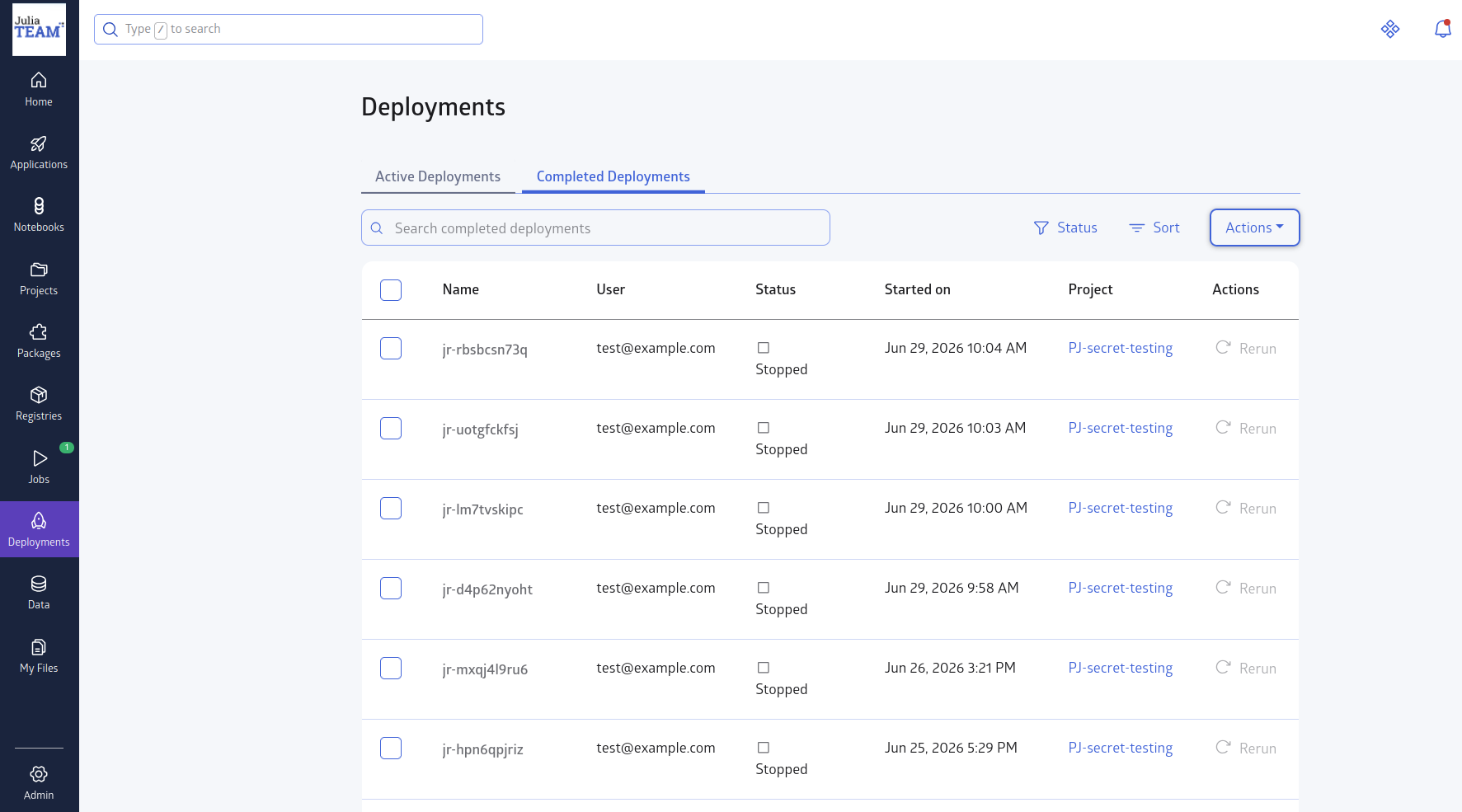
The "Deployments" main menu item on the left panel has an indicator displaying the number of currently active deployments across all your projects. Click on the Deployments main menu item to open the Deployments page. Here you can see a list of currently active deployments as well as older terminated deployments. Clicking on any of the items opens the details page for that deployment. There is also a link back to the parent project on each of the rows.
Converting your regular projects to deployable projects
If you created a regular project and you now want to deploy it, you must first convert it to a deployable project. Click on the "Manage" drop down and select "Edit Metadata". Check the "Deployable" checkbox and then click "Update". Confirm the dialog to convert your project to a deployable project. The Deploy button will now be enabled for your project.
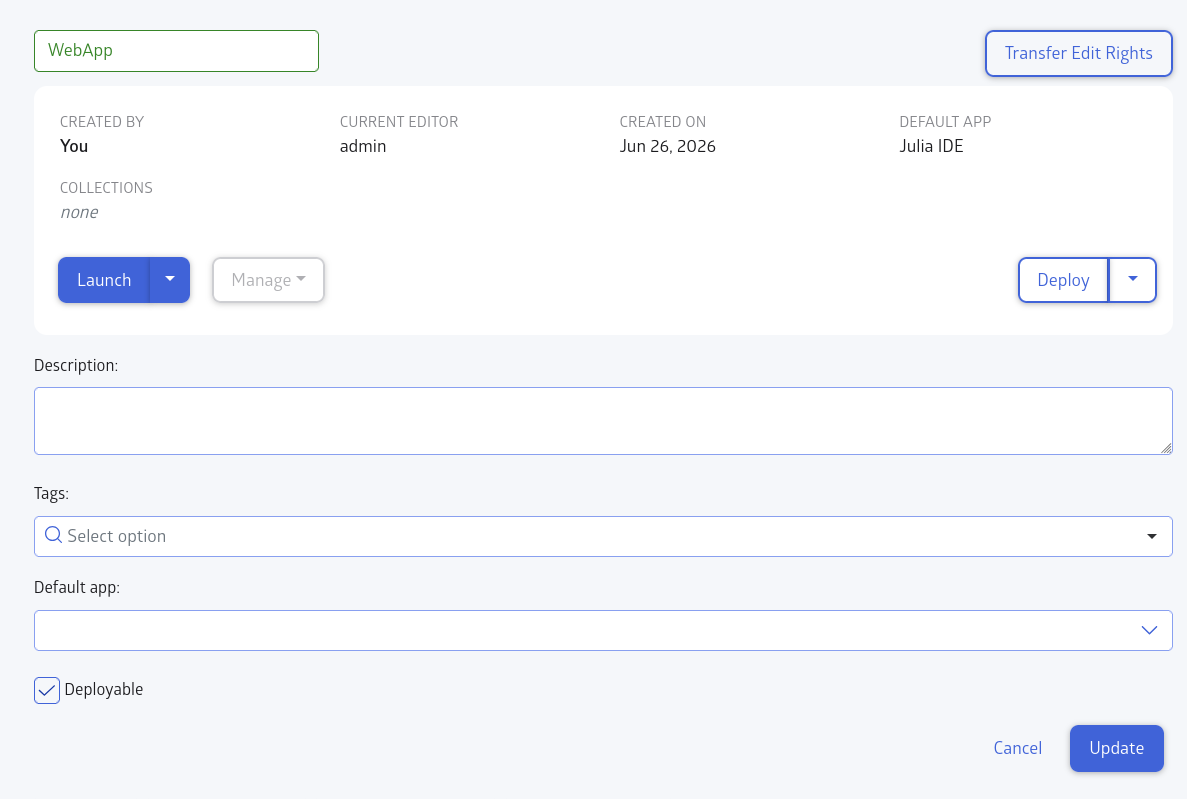
Note that you cannot convert a regular project to a deployable project if you have any project batch jobs running. In this case the confirm dialog will tell you about the active jobs. You need to stop these jobs or wait for their completion before you can convert your project. Note also that you can no longer access the project jobs tab once you do this. Project deployments and project batch jobs are mutually exclusive.
Converting your deployable project to regular project
If you want to disable the deployment feature on a project or you want to use the batch job feature on a deployable project, you can convert your deployable project to a regular project. Just as with converting a regular project to a deployable project, converting it back requires that you have no active deployment running. You will have to terminate the active deployment before you convert your project back. The confirm dialog will tell you about this. You will also lose access to the Deployments tab. The "Start Job" button and "Jobs" tab will re-appear when you convert a deployable project to a regular project.